Calculate Area with Confidence
A square footage calculator takes the guesswork out of measuring rooms, walls, lots, and irregular layouts. Instead of doing each formula by hand, you can choose the shape that fits your space, enter the dimensions, and get a clean total in seconds. That’s useful when you’re planning new flooring, estimating paint coverage, checking a listing’s size, or pricing out a renovation.
Built for Common Real-World Projects
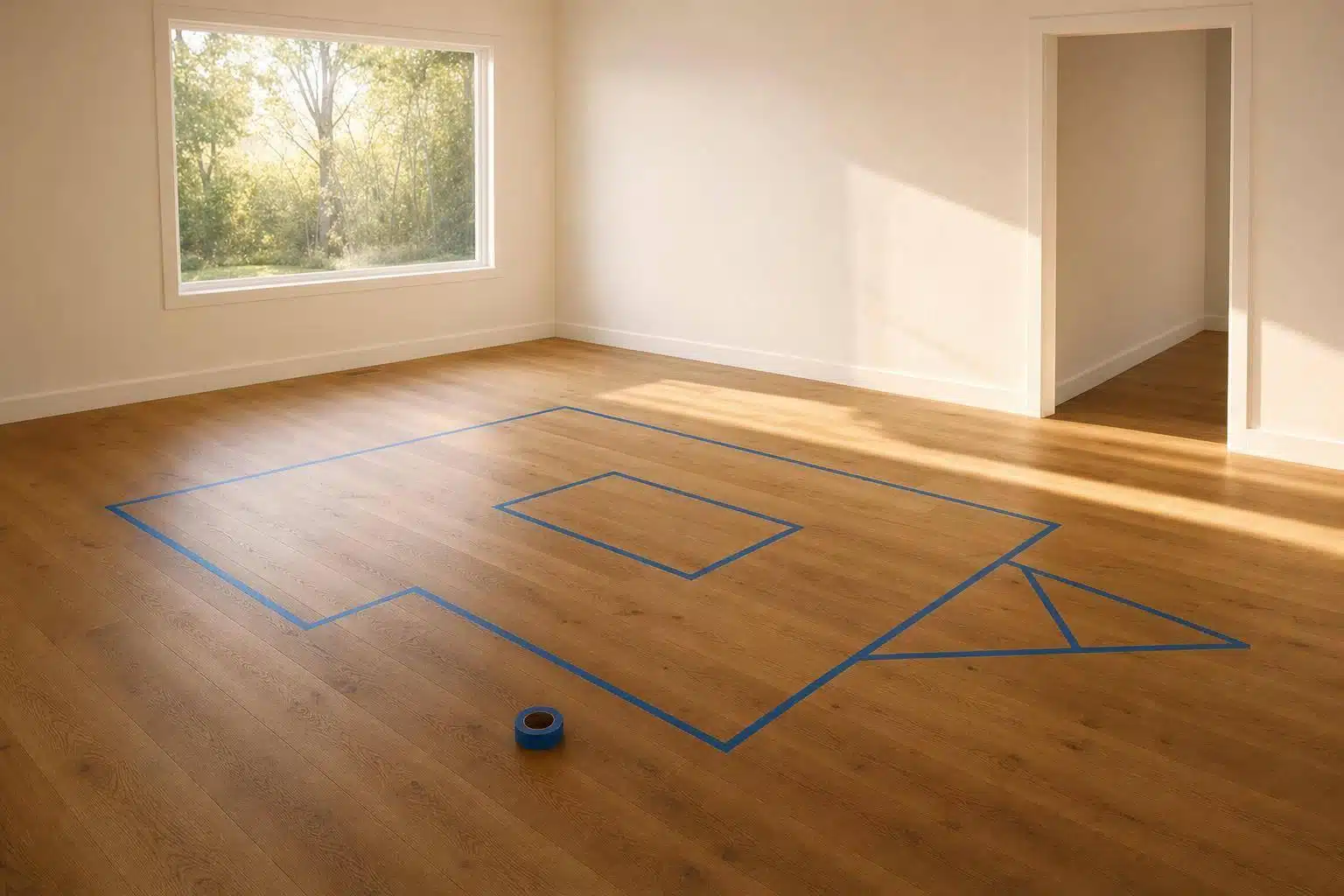
Not every space is a perfect rectangle. Some rooms have alcoves, angled corners, or separate sections that need to be added together. This tool handles standard shapes like rectangles, triangles, and circles, along with L-shaped layouts and multi-room totals. You can also subtract windows, doors, and other excluded areas, which makes it more practical than a basic area calculator.
Helpful Unit Conversions Included
A good square footage calculator should do more than return one number. This one also converts your result into square meters and square yards, so it’s easier to compare plans, material estimates, and property measurements. If you work in feet, inches, yards, or meters, the tool keeps the process simple and gives you a result that’s ready to use.
FAQs
What is the best shape option to use for my space?
Start with the simplest match. Use rectangle or square for most rooms, walls, patios, and lots with straight sides. Choose triangle for angled areas, circle for round spaces, and L-shape when a room can be split into two rectangles. If you’re measuring a full home, several rooms, or a project with multiple sections, the multi-room option is usually the easiest because it totals everything for you in one place.
Can I mix units and still get an accurate result?
Yes. The calculator is designed to convert measurements into a consistent internal unit before doing the math, which helps keep the final result accurate. You can enter dimensions in feet, inches, yards, or meters, then view the finished area in square feet, square yards, and square meters. That’s especially helpful when you’re comparing contractor measurements, floor plans, or product coverage listed in different units.
How do I account for doors, windows, or other areas I don’t want included?
Use the optional subtraction fields to remove openings or unusable sections from the total. This is useful for painting walls, ordering flooring around built-ins, or estimating material needs more realistically. If you’re measuring repeated rooms or identical units, you can also apply a quantity multiplier first and then subtract excluded areas so the final number better reflects the usable space.